
Gallery
Gallery is a display that shows result images with labels.
Example#
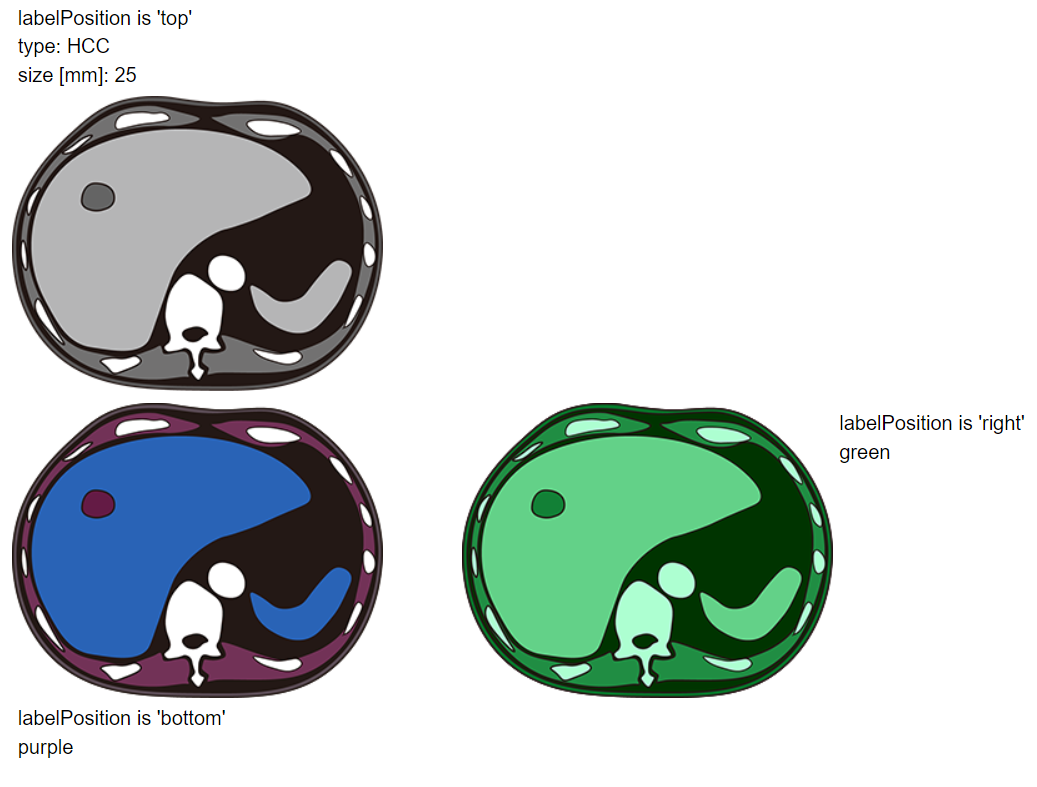
Synopsis#
displayStrategy
[
  {
    "type": "Gallery",
    "options": {
      "imageInfo": [
        {
          "fileName": "gray.png",
          "labelData": [
            {
              "customLabel": "labelPosition is 'top'"
            },
            {
              "customLabel": "type:",
              "dataPath": "results.volumes.0.candidate.0.type"
            },
            {
              "customLabel": "size [mm]:",
              "dataPath": "results.volumes.0.candidate.0.size"
            }
          ],
          "labelPosition": "top"
        },
        {
          "fileName": "purple.png",
          "labelData": [
            {
              "customLabel": "labelPosition is 'bottom'"
            },
            {
              "dataPath": "results.volumes.0.color.1"
            }
          ],
          "labelPosition": "bottom"
        },
        {
          "fileName": "green.png",
          "labelData": [
            {
              "customLabel": "labelPosition is 'right'"
            },
            {
              "dataPath": "results.volumes.0.color.2"
            }
          ],
          "labelPosition": "right"
        }
      ],
      "imageCountsPerColumn": [1, 2]
    }
  }
]
Data Preparation#
The plug-in results (results.json) corresponding to above Gallery example is as follows:
{
  "results": {
    "volumes": [
      {
        "candidate": [{ "type": "HCC", "size": "25" }],
        "color": ["gray", "purple", "green"]
      }
    ]
  }
}
Result Image#
Gallery suppports some types of graphic files.
There are: PNG(.png), JPEG(.jpg, .jpeg), GIF(.gif), WebP(.webp), SVG(.svg), APNG(.apng), and AVIF(.avif).
In the case of the example above, you need to prepare images as follows:
📂/circus/
    📂out/
        results.json
        gray.png
        purple.png
green.pngOptions#
interface GalleryOptions {
  imageInfo: {
    fileName: string;
    labelData?: {
      customLabel?: string;
      dataPath?: string;
    }[];
    labelPosition?: 'left' | 'right' | 'top' | 'bottom';
  }[];
  imageCountsPerColumn?: number[];
}fileName: The image file path.customLabel: (default: undefined) Set label directly by string.dataPath: (default: undefined) Set label fromresults.json.labelPosition: (default: 'bottom') Change label position relative to image.imageCountsPerColumn: (default:Array(imageInfo.length).fill(1)) Change number of images per column. Sum ofimageCountsPerColumnmust be the length ofimageInfo.