
Managing Users
Creating and Modifying Users#
Select [Administration] - [Users] from the menu at the top of the screen to display the user settings screen.
To create a new user, click the "Create new" button. After entering each item, click "Save".
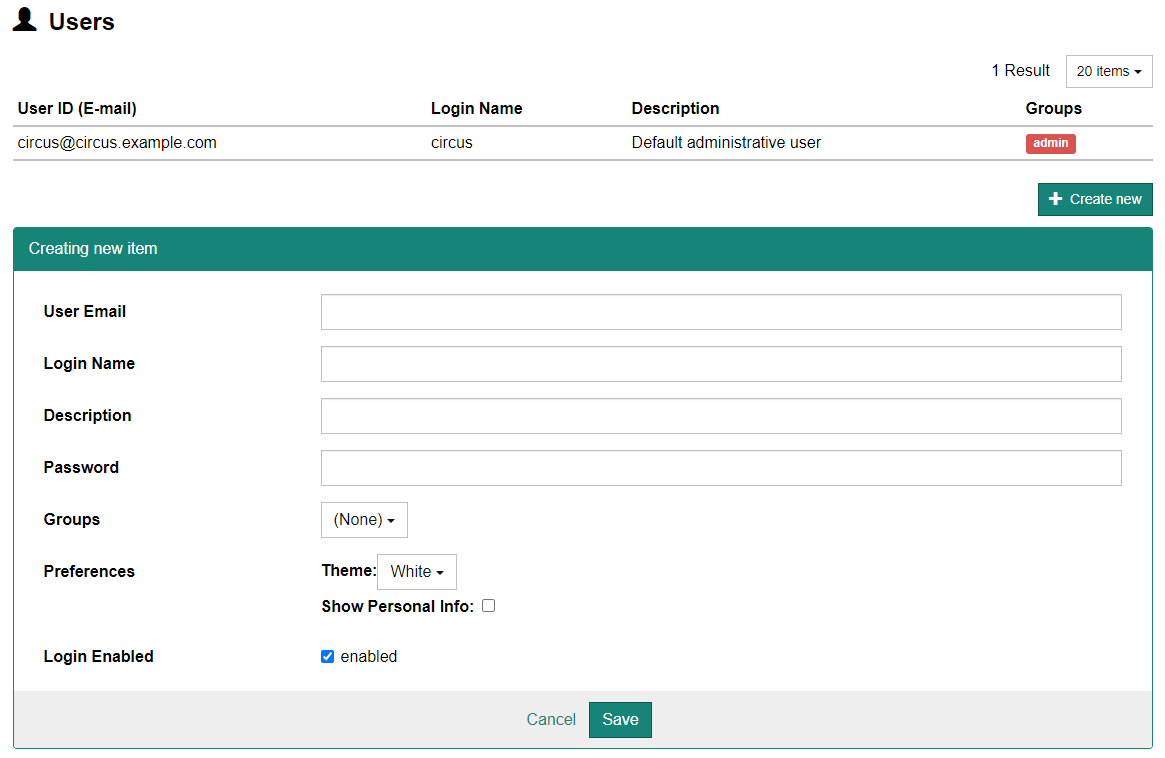
To make changes to an existing user, click on the line of the user whose settings you wish to change from the top list.
Configurable Options#
- Login Name
- This is an ID a user can use instead of their email address.
- Description
- The name of this user, e.g., shown next to the logout button at the top of the screen.
- Password
- The user's password. The password of an existing user is not displayed here. If you do not want to change the password, leave this blank.
- Groups
- Specify the groups this user belongs to. One user can belong to more than one group. The user's privilege is determined by the groups it belongs to.
- Preferences
- Some personal preferences of the user can be preconfigured here. Each user can change this settings later.
- Theme
- The initial theme of the new user.
- Show Personal Info
- Determins whether this user prefers to show personal information (such as patient name and birthdate) when they have a priviledge to do so. A user also needs a sufficient priviledge to show personal information.
- Login Enabled
- Used to temporarily or permanently disable this user.